Docs › Getting started
A product box is one shortcode. If the credentials and partner tag are saved, this takes about two minutes — and it is worth doing on a draft post before you build anything real on top of it, because it proves the whole chain works end to end.
In one lineFind the ASIN in the Amazon URL, put in a Shortcode block, preview.
Step one: find the ASIN
An ASIN is Amazon’s ten-character product ID. It is in every product URL, straight after /dp/:
https://www.amazon.com/Some-Product-Name/dp/B08N5WRWNW/ref=sr_1_3
                                              ↑
                                        this is the ASIN
It is also listed on the product page itself under Product information or Product details. Everything in the URL after the ASIN is tracking cruft you can ignore.
Books have two identifiers. For books the ASIN is usually the ISBN-10, not the ISBN-13. If a book ASIN returns nothing, that is almost always why.
Step two: place the shortcode
- Open a post or page and put the cursor where the box should appear. In a review, that is usually straight after the introduction.
- Add a Shortcode block. Click the +, search for Shortcode, and add it. In the Classic editor, just type into the body.
- Type the shortcode with your ASIN:
- Preview the post. Shortcodes do not render inside the editor, so the editor showing plain text is expected rather than a failure.
You should see a horizontal box with the product image, title, price, a rating, a call-to-action button and your disclosure line.
The easier route: the Shortcode Reference tab
If you would rather not type shortcodes, Affiliate Pro → Shortcode Reference lists every shortcode with its attributes and a live preview. Enter an ASIN, choose the options, see the result and copy the finished shortcode. For comparison tables there is a dedicated visual builder on the Compare Builder tab.
Choosing a different layout
One product renders as a horizontal box by default and several render as a grid. Override it with template:
| Shortcode | Renders |
|---|---|
|
One horizontal box |
|
One tall card |
|
A two-column grid |
|
A ranked list |
|
The top three matches, chosen by Amazon |
Every attribute is documented in the reference.
When nothing appears
An empty space where the box should be is the plugin returning nothing deliberately — it never prints a broken box or an error into your article. Work through these in order:
| Check | What to look for |
|---|---|
| The shortcode rendered at all | If you see the literal text |
| The ASIN is real for your marketplace | Test it on the Amazon API tab. A US ASIN against a UK marketplace returns nothing. |
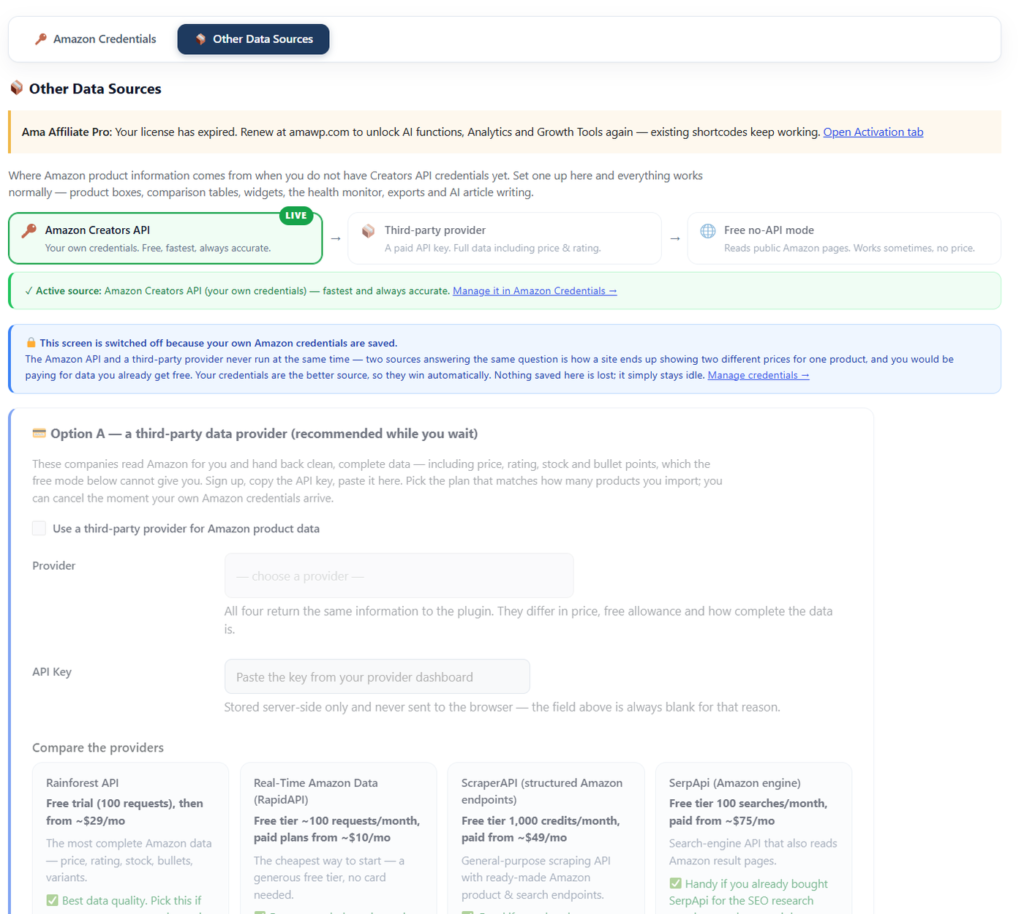
| A data source is connected | Amazon API → Amazon Credentials, or Other Data Sources for a provider or free no-API mode. |
| Quotes are straight, not curly | Pasting from Word or Google Docs turns " into “, which breaks the attribute. |
| Caching | LiteSpeed, Cloudflare or similar may be serving the page from before you added the box. Purge and reload. |
Once it renders
Two things are worth doing immediately, while the page is still a draft:
- Hover the button and read the URL. Your partner tag should be in it. If not, fix that before writing anything else — see partner tag and marketplace.
- Check the disclosure line is present. It renders above or below the box depending on the Display tab setting. Its exact wording matters legally; the requirements are here.
Common questions
How many product boxes can one page have?
There is no hard limit, but each one is an image and a block of markup, so a roundup with twenty boxes is a slow page. Boxes are the single most common cause of Core Web Vitals failures on affiliate sites — what to do about it.
Can I put a product box in a sidebar or footer?
Yes, in any widget area that renders shortcodes. For a persistent unit that follows the reader instead, the floating bar and pop-up are purpose-built — see the widget shortcodes.
Will the price stay current on its own?
With Amazon credentials connected, yes — refreshed on a schedule rather than per page view. Without them the plugin does not display a price at all, because Amazon’s terms do not permit showing one obtained outside the API.
What happens when a product is discontinued?
The box keeps rendering from cached data, which is exactly the failure worth catching early: a link to a dead product earns nothing and looks careless. Finding them is what dead-link detection is for.
Next
- The
reference — every attribute and layout. - Comparison tables with
. - Display settings — buttons, colours and where the disclosure goes.