
Popups & Widgets — four placements that earn outside the article body.
An exit-intent popup, a floating product bar, a second bar for a membership offer and a scrolling ticker. Each one is injected automatically on every post, each one can pick its own product with AI, and each one can be previewed before a visitor ever sees it.
The 60-second version. Everything in it is written out below, with each field marked on the screen it belongs to.
What you will have when you finish
- An exit-intent popup that offers a relevant product as a reader is about to leave.
- A floating bar or sidebar rail that stays with the reader down the whole article.
- An optional second bar promoting a membership, which earns a separate bounty alongside product commission.
- A scrolling ticker across the top of the page.
- A list of pages where none of it appears — contact, privacy, checkout.
One dependency before you start. Three of these can pick their own product per article using AI. That needs a Keyword Generation provider and model saved under AI Settings — part 2 of this series covers it. Without it, AI product matching will not work and each widget falls back to a fixed keyword you set here. Everything else on this tab works either way.
Open Affiliate Pro → Popups & Widgets. Four items in the left-hand list. No theme edits are needed anywhere — each widget is injected into every singular post and page for you.
Exit-Intent Popup
The popup appears when a reader moves to close the tab or leave the page. It is the last chance to put a product in front of someone who was about to go without clicking anything.
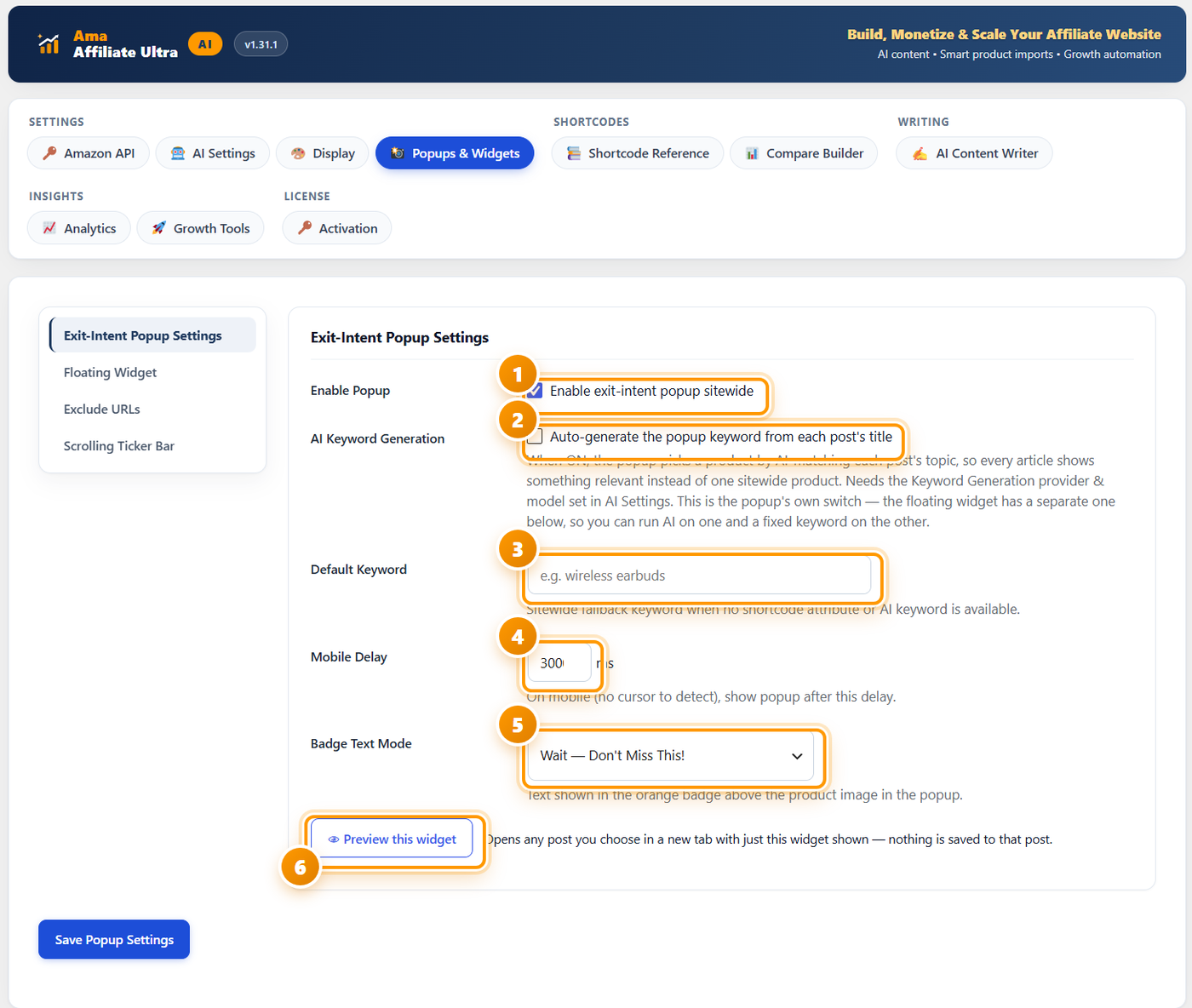
The setting that decides whether it is worth having
AI Keyword Generation is the difference between a popup that helps and one that annoys. With it on, the popup picks a product by matching each post’s own topic, so an article about air purifiers offers an air purifier. With it off, every article on the site shows the same product — whatever you put in Default Keyword.
This is the popup’s own switch. The floating widget has a separate one, so you can run AI matching on one and a fixed keyword on the other. Both read the Keyword Generation provider and model from AI Settings.
The other three fields
| Field | What it does | What to set |
|---|---|---|
| Default Keyword | The sitewide fallback when there is no shortcode attribute and no AI keyword. | Your site’s broadest product term. It is a safety net, not the main plan. |
| Mobile Delay | A phone has no cursor, so there is no exit movement to detect. Instead the popup appears after this many milliseconds. | 3000 ms is the shipped value — long enough that a reader has started reading before anything interrupts. Raise it if your posts are long. |
| Badge Text Mode | The text in the orange badge above the product image. | Pick the phrasing that suits your tone. Wait — Don’t Miss This! is direct; the calmer options suit a more editorial site. |
Use Preview this widget before you switch it on. It opens any post you choose in a new tab with just this widget shown, and nothing is saved to that post. It is the fastest way to see the popup exactly as a reader would.
Floating Widget
A product box that stays with the reader as they scroll. This is the highest-earning placement on the tab, because it is visible for the whole article rather than for one moment.

Bottom bar or side rail?
Bottom bar default
A compact strip across the bottom of the screen. Takes the least space and works on every theme, including ones with no free margin at all.
Left / right rail more clicks on desktop
A tall sky-scraper pinned to that side, with a bigger image, the price and the button. It sits in the free margin outside your content column, so it never covers a sidebar box.
The rail cannot overlap your article. Before it is shown, the plugin measures the space your theme actually leaves on that side. If the rail fits it is used, narrowed to fit if necessary; if there is genuinely no room it falls back to the bottom bar instead.
The two size dials
You rarely need to touch either, but this is what they do when you do:
- Rail Top Offset — how far down the rail starts. Raise the number to move the box down, past a tall sticky header; lower it to move the box up. It only applies to the left/right rail; the bottom bar ignores it.
- Rail Width — how wide the box is allowed to get. 212px is the roomy default, 170px a slim column, and 140px about as narrow as a readable product box gets. The box measures the free space at page load and compresses itself when your number does not fit — shrinking image, text and button together so it stays readable rather than being clipped. Setting a number here caps how wide it is allowed to be; it never forces the box to overlap your content.
AI Keyword Generation works exactly as it does for the popup, with its own separate switch — so the floating widget can match each post’s topic while the popup runs a fixed product, or the other way round.
The second bar — a membership offer
A second floating bar that runs alongside the product bar and promotes a membership instead of a product. It ships set up for Amazon Prime, and every line of it can be rewritten for any other offer.

Why this one is worth switching on
Your visitor is already on the way to Amazon to buy something. Most Associates programmes pay a separate fixed bounty when someone starts a Prime free trial through your link, on top of any product commission you earn from the same visit — so the two do not compete, they stack. The reader benefits too: their order arrives faster.
Check your own Associates account for the current bounty rate and whether your country’s programme runs the offer at all. Bounties vary by marketplace and change over time.
The link is the one required field
Your link is always manual and never generated for you. Take the Prime trial link from Associates Central — from Product Linking, or from the Bounty/Offers page — so it carries your tracking ID, and paste it here. Without a link the bar does not render at all.
How it behaves next to the product bar
- Same size and style as the product bar, on the side you pick.
- If the product bar is already on that side, this one stacks with it instead of covering it — the product bar is never moved, hidden or replaced.
- It appears only after the reader scrolls, and never sits over the article text.
- It closes with one click for the rest of the visit.
It works whether or not the product bar above is on, and the same Exclude URLs list applies to both. Distance from the edge moves it away from the edge it is pinned to, for themes with a sticky footer, a cookie bar or a chat bubble in the way — leave it at 0 unless something is in the way.
Write the second bar’s copy
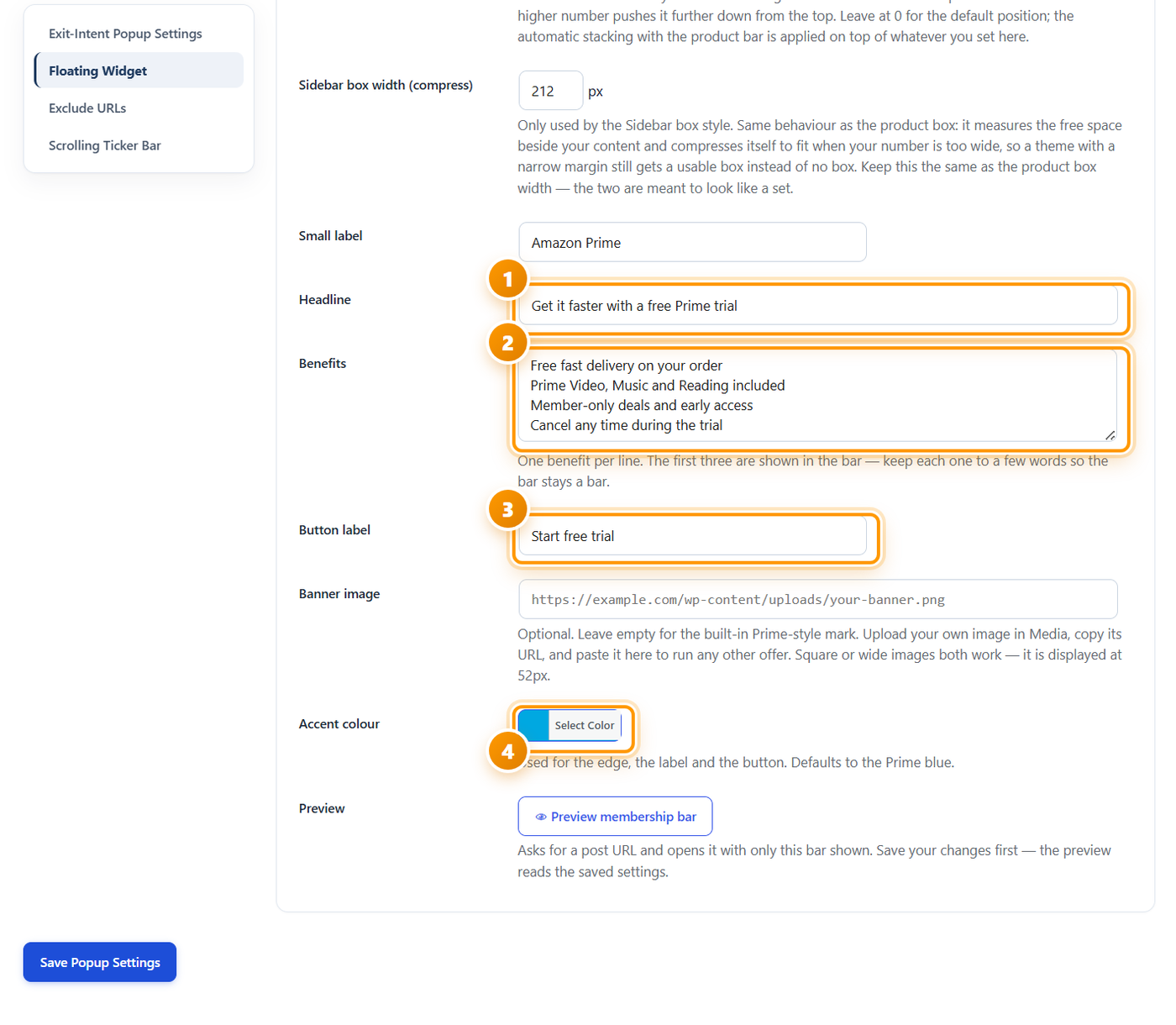
Scroll on and every word in the bar is yours to set. The defaults are written for Prime, so if that is the offer you are running you can leave them as they are.
| Field | Notes |
|---|---|
| Small label | The kicker above the headline — Amazon Prime, or the name of whatever you are promoting. |
| Headline | The offer in one line. Get it faster with a free Prime trial leads with the benefit rather than the brand. |
| Benefits | One per line. The first three appear in the bar, so put the strongest first and keep each to a few words — otherwise the bar stops being a bar. |
| Button label | Short and specific. Start free trial tells the reader exactly what happens next. |
| Banner image | Optional. Leave it empty for the built-in Prime-style mark. To run a different offer, upload an image in Media, copy its URL and paste it here — square or wide both work, displayed at 52px. |
| Accent colour | Used for the edge, the label and the button. Defaults to Prime blue; change it to your brand colour if you are promoting something else. |
| Sidebar box width | Only used by the Sidebar box style, and it behaves exactly like the product box. Keep it the same as the product box width — the two are meant to look like a set. |
Save before you preview. Preview membership bar asks for a post URL and opens it with only this bar shown — but it reads the saved settings, so unsaved edits will not appear.
Exclude URLs
The one screen that stops the widgets appearing where they should not. Anything sitewide needs a list like this, and it takes a minute.

Any post whose URL contains one of these strings will not show the sitewide popup or floating widget. Because it matches on a partial path, /contact covers every page under it without you listing each one.
Worth adding on almost every site:
| Add | Why |
|---|---|
/contact | Someone filling in a form does not want a product popup over it. |
/privacy, /terms, /disclaimer | Legal pages should stay clean and readable. |
/thank-you | The conversion already happened. Do not interrupt it. |
/cart, /checkout | If you sell anything of your own, never distract a buyer mid-purchase. |
/about | Optional, but a page about you reads oddly with a product bar attached. |
Scrolling Ticker Bar
A fixed bar at the top of every page where products scroll past like a billboard. Off by default — it is the most assertive of the four, so switch it on deliberately.

Two ways to fill it
Manual ASINs
Paste comma-separated ASINs into Ticker ASINs and write one line of text per product in Ticker Text, matching the ASIN order. Or write a single line and it is used for all of them. Best when you want to push a specific set of products everywhere.
AI Ticker Mode
Generates a keyword from each post’s title and shows the top five matching products, ignoring the manual ASINs above. Needs the Keyword Generation provider and model in AI Settings. The per-post keyword is cached for 7 days, so it does not re-bill you on every page view.
Write the ticker text carefully — this is the field most likely to get an Associates account in trouble. Avoid invented claims: fake discounts, made-up review counts, or “limited time” urgency. Amazon policy prohibits fabricated deal claims, and a ticker repeats your wording on every page of the site.
Phrasing that works and stays compliant:
⭐ Our top pick in this category — check the current price.
🎁 A reader-favourite gift idea — take a look.
Each of those makes a claim you can stand behind — your own opinion, or a fact the reader can verify by clicking. None of them invents a discount.
Scroll Speed at Medium is readable without being distracting. You can also drop a ticker into one specific post with , or use ai="1" for AI mode on that page only.
Press Save Popup Settings. One button saves all four screens.
How many should you run at once?
All four can run together without colliding — but that does not mean they should. A page with a ticker, a rail, a membership bar and a popup is a lot to ask of a reader.
| If your site is… | Run | Why |
|---|---|---|
| New, still building trust | Floating widget only | The least intrusive placement, and the one that earns most per visitor. Get it right before adding anything else. |
| Established, mostly reviews | Floating widget + exit-intent popup | The rail catches readers during the article; the popup catches the ones who were leaving anyway. |
| Earning steadily | Add the membership bar | The bounty stacks with product commission rather than competing with it. This is the cheapest incremental win on the tab. |
| News or deals focused | Add the ticker | A ticker suits a site where readers expect a fast-moving front page. On a slow editorial site it feels out of place. |
Preview each one before switching it on. Every widget on this tab has its own preview button that opens a post with only that widget showing and saves nothing. Three minutes of previewing beats finding out from your bounce rate.
If something does not appear
| What you see | What it usually means | What to do |
|---|---|---|
| A widget shows the same product on every article | AI Keyword Generation is off for that widget | Each widget has its own switch. Turn it on, and check that a Keyword Generation provider and model are set in AI Settings. |
| AI matching does nothing at all | No Keyword Generation model saved | Set the provider and model under AI Settings → Model Per Task, then run Test Keyword AI to confirm it returns something sensible. |
| The side rail became a bottom bar | Your theme leaves no free margin | Working as designed — the rail falls back rather than overlapping your article. Reduce Rail Width, or use a wider layout. |
| The rail sits under a sticky header | Rail Top Offset too low | Raise it until the box clears the header. |
| The membership bar never renders | No link | Your link is required and is never generated. Paste the Prime trial link from Associates Central so it carries your tracking ID. |
| The membership bar preview shows old copy | Unsaved changes | Save first — the preview reads the saved settings. |
| A popup appears on your contact page | Nothing excluded yet | Add /contact and the other paths to Exclude URLs. |
| The popup never fires on a phone | Exit intent needs a cursor | Mobile uses the Mobile Delay instead. Lower the number if you want it sooner. |
| The ticker ignores your ASINs | AI Ticker Mode is on | AI mode overrides the manual list by design. Switch it off to use your own ASINs. |
What to do next
Style them to match
The widgets follow the colours and button text you set on the Display tab. If you have not been through that one yet, do it now — it is ten minutes and it changes everything at once.
Check the AI keyword model
Three of these rely on it. Part 2 covers setting the Keyword Generation provider and testing it.
Watch what they earn
The Analytics tab reports clicks by placement, so you can tell which widget is worth keeping.
Frequently asked questions
Do I have to edit my theme to use these?
No. Each widget is injected automatically into every singular post and page. There is nothing to add to a template, and nothing to remove if you switch one off later.
Can the popup and the floating widget show different products?
Yes. Each has its own AI Keyword Generation switch, so one can match each post’s topic while the other runs a fixed keyword — or both can do the same thing. They are independent.
Will the side rail cover my sidebar or my article text?
No. The rail sits in the free margin outside your content column, and before it is shown the plugin measures the space your theme actually leaves. If it fits it is used, narrowed if necessary; if there is no room it falls back to the bottom bar.
Does the membership bar replace the product bar?
No. If both are on the same side they stack — the product bar is never moved, hidden or replaced. The second bar also works on its own if the product bar is switched off.
Why is the membership bar worth running alongside product links?
Most Associates programmes pay a separate fixed bounty when someone starts a Prime free trial through your link, on top of any product commission from the same visit — so the two stack rather than compete. Check your own Associates account for the current rate and whether your country’s programme runs it.
What should I never write in the ticker?
Invented claims — fake discounts, made-up review counts, or “limited time” urgency. Amazon policy prohibits fabricated deal claims, and a ticker repeats your wording on every page. Stick to your own opinion or facts a reader can verify by clicking.
Does AI mode cost me an API call on every page view?
No. The per-post keyword is cached for 7 days, and AI Settings has a daily keyword call limit that caps live calls per 24 hours. Both keep the running cost small and predictable.
Can I use these on one specific post instead of sitewide?
Yes. The ticker has a shortcode — , with ai="1" for AI mode — so you can place one on a single page without enabling it sitewide.
Four placements, none of them in your article body
The rail, the popup, the membership bar and the ticker all install themselves — no theme edits, and a preview for each before a visitor ever sees it. Every plan includes every feature and a 14-day free trial.
See plans & start free