Docs › Getting started
The Creators API is what lets a product box show a live price, a current image and a real availability state instead of whatever was true on the day you wrote the post. Connecting it takes four fields and about ten minutes, most of which is spent on Amazon’s side.
In one lineAmazon Associates → Tools → Creators API → create an application → copy the Credential ID and Secret into Affiliate Pro → Amazon API → Amazon Credentials.
Do you actually need it?
Not to start. The plugin has a free no-API mode and supports third-party product-data providers, both under Amazon API → Other Data Sources. What the official API adds is accuracy and permission:
| Creators API | No-API mode | |
|---|---|---|
| Live price | Yes, refreshed on a schedule | No — Amazon does not permit displaying a scraped price |
| Product images | Yes, served from Amazon as the terms require | Limited |
| Stock and availability | Yes | No |
| Prime badge | Yes | No |
| Works before approval | No — needs qualifying sales first | Yes |
API access is not granted on signup. Amazon requires qualifying sales before it will issue credentials, and it withdraws access again if sales stop. That is normal and it is not a rejection — the reasons and the exact error codes are covered in Amazon Product Advertising API access denied.
Getting the credentials from Amazon
- Sign in to Amazon Associates for the marketplace you are promoting. Credentials are per-marketplace: a US set will not authenticate against the UK endpoint.
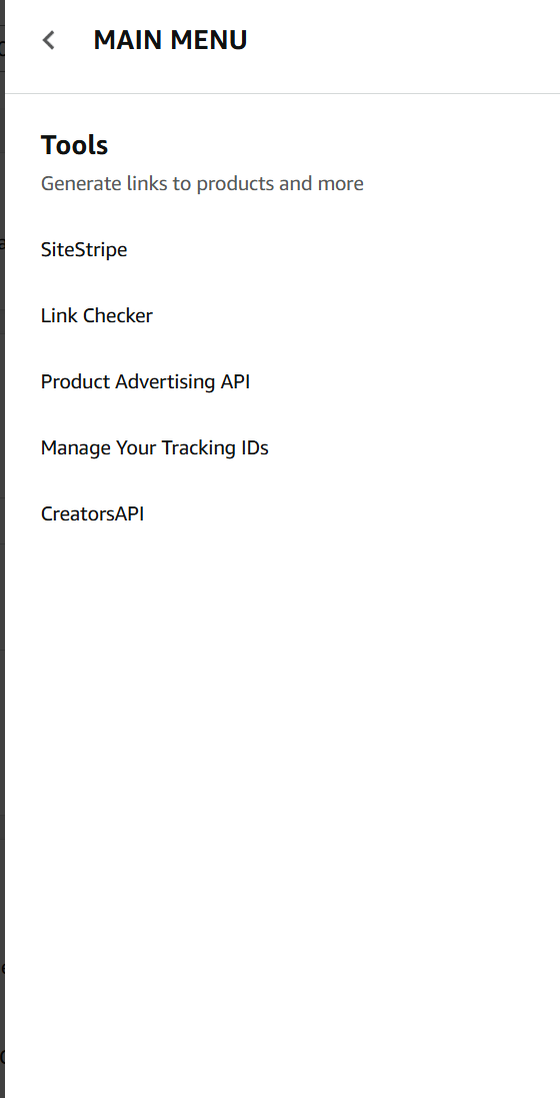
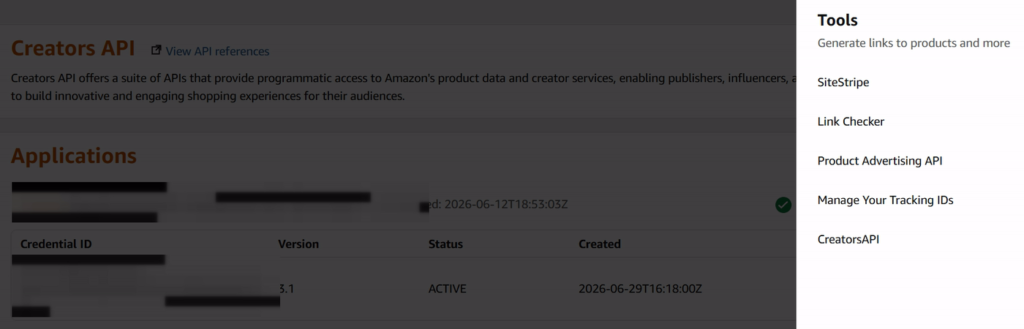
- Open the Tools menu in the top navigation.
- Choose Creators API. If the entry is missing, your account has not been granted access yet.
- Create an application. Amazon shows a Credential ID and a Credential Secret. The secret is shown once. Copy both somewhere safe before you leave the page.
Entering them in the plugin
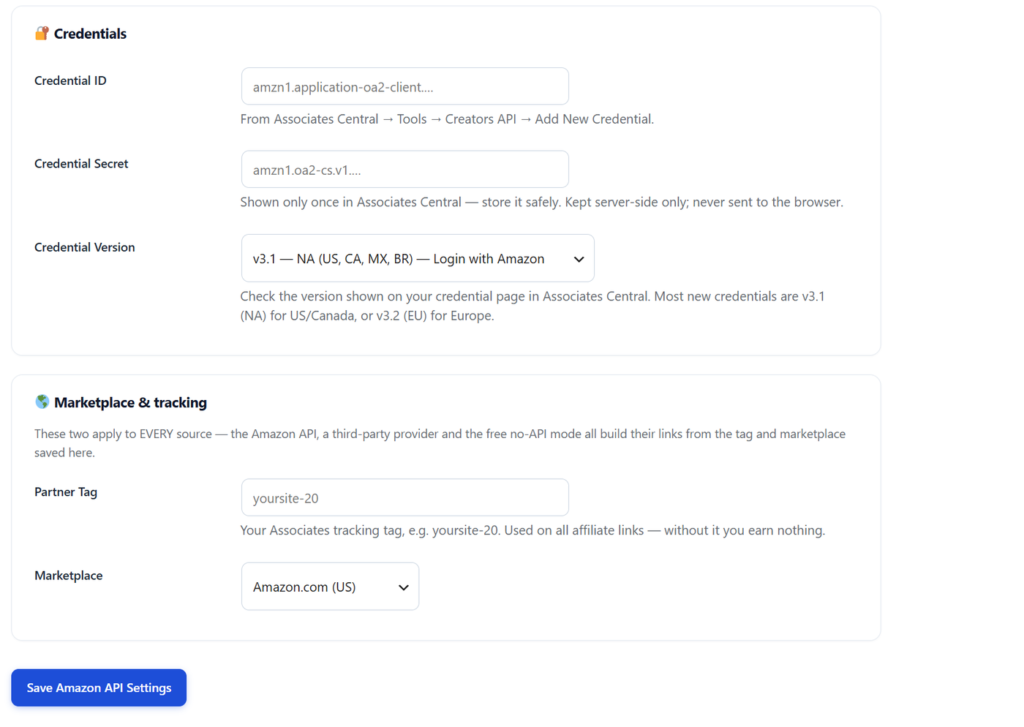
Go to Affiliate Pro → Amazon API. The tab opens on the Amazon Credentials sub-tab, which has five fields.
| Field | What goes in it |
|---|---|
| Credential ID | The ID from the application you just created. |
| Credential Secret | The secret from the same screen. Stored write-only — it is never displayed back. |
| API version | Whichever version Amazon issued your credentials under. If you are unsure, try the newest and fall back one step if authentication fails. |
| Partner tag | Your Associates tracking ID, for example yoursite-20. Covered in partner tag and marketplace. |
| Marketplace | The Amazon domain these credentials belong to. Nineteen are supported. |
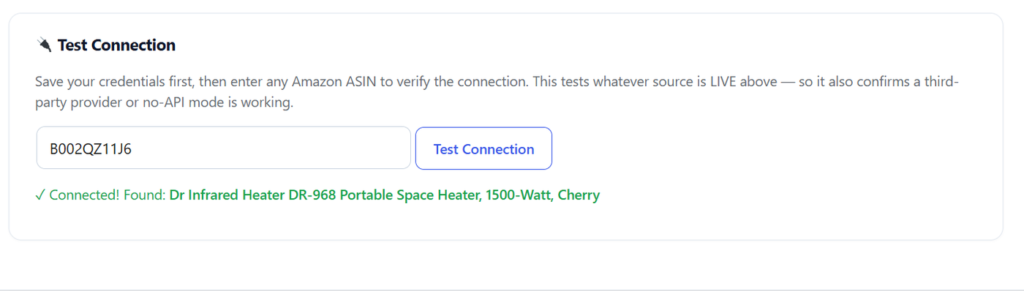
Save, then use the Test connection field underneath. Paste any real ASIN for your marketplace — the ten-character code in an Amazon URL after /dp/ — and the plugin fetches it. A title and price coming back means you are done.
Once Amazon credentials are saved, the Other Data Sources screen goes read-only. That is deliberate rather than a bug: with official credentials present the plugin always uses them, so an editable third-party field would be a control that does nothing.
Reading the errors
| Response | Cause | Fix |
|---|---|---|
| Authentication or signature failure | Wrong secret, or credentials from a different marketplace than the one selected. | Re-create the application and re-copy both values. Confirm the marketplace matches. |
| Access denied / not authorised | Access has not been granted, or was withdrawn for lack of qualifying sales. | Use no-API mode meanwhile. See the full error-code guide. |
| Request throttled | Amazon rate-limits by sales volume. New accounts get a very small allowance. | Nothing to fix. The plugin caches and retries; the allowance grows with sales. |
| Nothing returned for that ASIN | The ASIN does not exist in the selected marketplace. | Use an ASIN from the same Amazon domain you configured. |
Common questions
Can I use one set of credentials for several marketplaces?
No. Credentials are issued per marketplace and will not authenticate against another. If you want visitors sent to their local Amazon, that is a different mechanism — see localising affiliate links by country.
I lost the secret. Can I see it again?
Not from Amazon and not from the plugin, which stores it write-only. Create a new application, which issues a fresh pair, and paste those in instead.
How often does the plugin refresh prices?
On a schedule rather than on every page view, because Amazon’s terms cap how long data may be cached and its rate limits make per-view fetching impossible. Cached data is what keeps product boxes fast.
What happens to my product boxes if API access is withdrawn?
Existing boxes keep rendering from cached data, and the links keep earning. What stops is refreshing. Switch to no-API mode under Other Data Sources so new products can still be added while you rebuild qualifying sales.
Next
- Your partner tag and marketplace — the two fields that decide whether a click pays you.
- Publishing your first product box.
- Adding products without API access — the route to take while you wait.