Docs › Getting started
Ama Affiliate Pro is a normal WordPress plugin installed from a zip file. There is no repository listing, because the plugin is licensed rather than free, so the install is an upload rather than a search.
In one linePlugins → Add New → Upload Plugin → choose the zip → Install Now → Activate. Then open Affiliate Pro in the sidebar.
Before you start
Three things are worth checking first, because each one causes an install that half-works rather than one that fails cleanly.
| Requirement | Minimum | Why it matters |
|---|---|---|
| WordPress | 6.0 or newer | The settings screens use block-editor APIs that older versions do not ship. |
| PHP | 7.4 or newer, 8.1+ preferred | Below 7.4 the plugin will not activate at all. On 8.x it is measurably faster. |
| Upload limit | Larger than the zip | A limit smaller than the file gives a blank screen, not an error. Your host can raise it. |
You do not need an Amazon API key to install or to try the plugin. That is a separate step, and there is a free path that skips it entirely — see adding Amazon products without API access.
Installing the zip
- Download the zip from your order confirmation email, or from the order page on amawp.com. The file is named
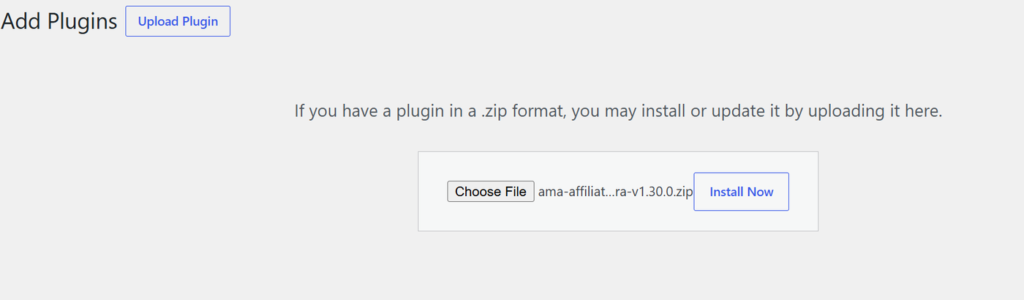
ama-affiliate-pro.zip. Do not unzip it. - Open Plugins → Add New Plugin in wp-admin, then click Upload Plugin at the top of the screen.
- Choose the file and click Install Now. WordPress uploads and unpacks it. On a slow connection this can take a minute; leave the tab open.
- Click Activate Plugin on the screen that follows.
Updating an existing install? Deactivate the old version first, then upload the new zip over it and choose Replace current with uploaded when WordPress offers. Your settings, licence and click history all live in the database, so nothing is lost.
What you should see
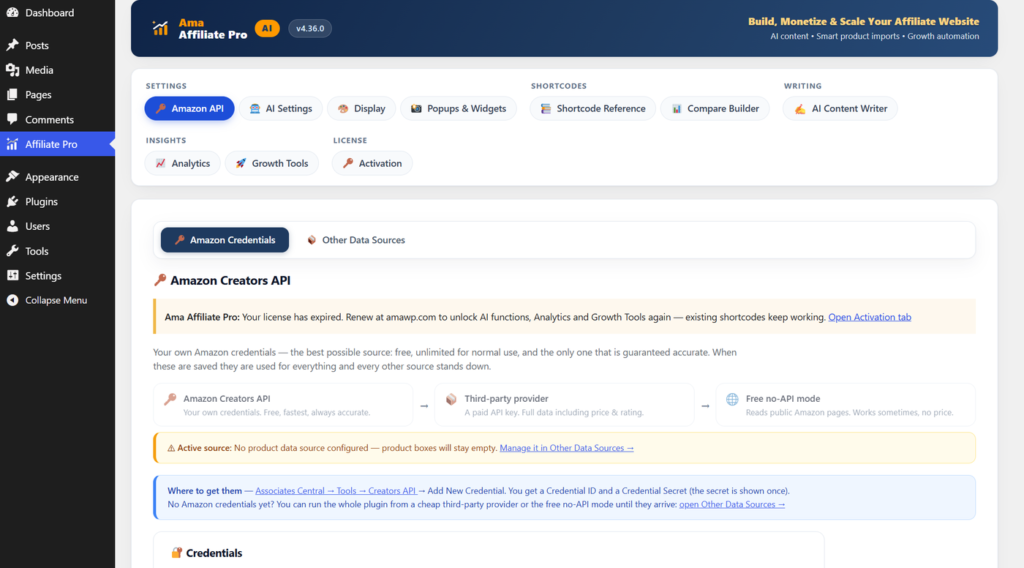
After activation an Affiliate Pro item appears in the wp-admin sidebar. Opening it lands you on the Amazon API tab, which is the first thing to configure and the reason that tab is the default.
The settings screen is organised into five groups rather than one long row of tabs:
| Group | Tabs | What lives there |
|---|---|---|
| Settings | Amazon API, AI Settings, Display, Popups & Widgets | Credentials, AI keys and models, how product boxes look, and the floating and pop-up units. |
| Shortcodes | Shortcode Reference, Compare Builder | Every shortcode with a live preview, plus a visual builder for comparison tables. |
| Writing | AI Content Writer | Single reviews, roundups and comparisons, one at a time or in bulk. |
| Insights | Analytics, Growth Tools | Clicks, visits and traffic sources; Link Doctor, the SEO audit, the duplicate finder and the rest. |
| License | Activation | Your key, the plan it unlocks, seats used and days remaining. |
When it does not go smoothly
| What you see | What it means | Fix |
|---|---|---|
| The link you followed has expired | The zip is larger than the server’s upload limit. WordPress reports this as an expired link rather than a size error, which is why it is confusing. | Ask your host to raise upload_max_filesize and post_max_size, or install over SFTP into wp-content/plugins/. |
| The package could not be installed. No valid plugins were found. | The zip was unzipped and re-zipped, or the browser expanded it on download, so the folder structure is wrong. | Re-download and upload the original file without opening it. On macOS, turn off Safari’s Open safe files after downloading. |
| Blank white screen after activating | Almost always a PHP version below 7.4, or a fatal error in another plugin surfacing at the same time. | Check the PHP version under Tools → Site Health. If it is 8.x, look at the error log before assuming this plugin is the cause. |
| Plugin activates, but no sidebar item | The current user is not an administrator. The settings screen requires the manage_options capability. |
Sign in as an administrator, or have one grant the capability. |
Do not run two Amazon affiliate plugins at once while you are testing. Both will try to rewrite the same links, and the one that runs second wins — which makes tracking problems very hard to attribute. Deactivate the old one before you start.
Common questions
Can I install it on a local or staging site first?
Yes, and it is a good idea. The licence allows activation on the number of sites your plan covers, and a staging site counts as one of them. Deactivate the key on staging before you activate it on production if you are on a single-site plan.
Do I need to activate a licence key to install it?
No. The plugin installs, activates and lets you configure everything without a key. What a key unlocks is the AI writing, the growth tools and the analytics reports — see activating your licence key. Click and visit tracking runs regardless, so nothing is lost while you decide.
Will it slow my site down?
The plugin loads its front-end stylesheet only on pages that actually render a product box, so a page without one is untouched. Product data is cached rather than fetched on every view. The thing that does cost speed is a page stuffed with large product images — that problem, and its fixes, is covered in why affiliate product boxes wreck Core Web Vitals.
Where do my settings go if I uninstall it?
Deactivating changes nothing. Deleting the plugin through WordPress runs its uninstall routine, which removes the plugin’s own options. Export anything you want to keep — particularly the analytics CSV — before deleting rather than after.
Next
- Connecting the Amazon Creators API — live prices, images and availability.
- Your partner tag and marketplace — the two fields that decide whether you get paid.
- Publishing your first product box — the five-minute version.
- The full setup walkthrough — ordering, installing and activating, with every screen shown.